Connect SharePoint, Google Drive, GitHub and more to a private AI
Connect an account once and it syncs into Knowledge, gives agents tools, or both. DocsGPT ships 14 ready-made connectors, from Google Drive, SharePoint and Confluence to GitHub and Notion, and takes any MCP server or OpenAPI spec. Credentials are encrypted on the server and never sent to the browser, and admins decide which connectors are allowed.
google drive · sharepoint · confluence · github · s3 · notion · linear · jira · mcp · openapi
Last updated:
The connector catalog
14 ready-made connectors: 6 sync content into Knowledge and 10 give agents tools. GitHub and Linear do both from one connection: GitHub syncs repositories and lets agents read code, issues and pull requests; Linear syncs issues and lets agents create them.
Built-in connectors ship with DocsGPT. MCP presets are vendor-run MCP servers that sign in with OAuth and need no admin setup. Custom connectors take any MCP server or OpenAPI spec.
built in · mcp presets · custom mcp · openapi
| Connector | What it does | Knowledge | Agent tools | Connect with | Docs |
|---|---|---|---|---|---|
| Files | |||||
| Google Drivebuilt-in | Sync Docs, Sheets and PDFs into Knowledge. | syncs | — | OAuth | Docs ↗ |
| SharePoint / OneDrivebuilt-in | Sync files from SharePoint sites and OneDrive into Knowledge. | syncs | — | OAuth (Entra ID) | Docs ↗ |
| Amazon S3built-in | Sync documents from an S3 bucket into Knowledge.bucket · path prefix · S3-compatible endpoint | syncs | — | Access key | Docs ↗ |
| Docs & wikis | |||||
| Confluencebuilt-in | Sync Confluence spaces and pages into Knowledge. | syncs | — | OAuth | Docs ↗ |
| NotionMCP preset | Search, read and update Notion pages and databases. | — | looks things up · takes actions | OAuth, no admin setup | Docs ↗ |
| Projects | |||||
| LinearMCP preset | Sync issues and documents into Knowledge, and let agents find, create and update issues. | syncs | looks things up · takes actions | OAuth, no admin setup | Docs ↗ |
| Jira & ConfluenceMCP preset | Search and update Jira issues and Confluence pages. | — | looks things up · takes actions | OAuth, no admin setup | Docs ↗ |
| Developer | |||||
| GitHubbuilt-in | Sync repositories into Knowledge and let agents read code, issues and pull requests.changes are opt-in per connection | syncs | looks things up · takes actions | Token, or a GitHub App | Docs ↗ |
| SentryMCP preset | Look up Sentry issues, events and releases. | — | looks things up · takes actions | OAuth, no admin setup | Docs ↗ |
| Business | |||||
| StripeMCP preset | Look up customers, payments and subscriptions in Stripe. | — | looks things up · takes actions | OAuth, no admin setup | Docs ↗ |
| Messaging | |||||
| Telegrambuilt-in | Send messages and images to a Telegram chat.optional fixed default chat | — | takes actions | Bot token | Docs ↗ |
| ntfybuilt-in | Send push notifications through an ntfy server. | — | takes actions | Access token | Docs ↗ |
| Database | |||||
| PostgreSQLbuilt-in | Read the schema and run SQL against a Postgres database. | — | looks things up · takes actions | Connection string | Docs ↗ |
| Search | |||||
| Brave Searchbuilt-in | Search the web and images with the Brave Search API. | — | looks things up | API key | Docs ↗ |
| Custom | |||||
| MCP servercustom | Connect any remote Model Context Protocol server. | — | looks things up · takes actions | Set per server | Docs ↗ |
| OpenAPI / RESTcustom | Import an OpenAPI spec and call its endpoints as tools. | — | looks things up · takes actions | Your API's own key, if any | Docs ↗ |
How a connection works
A connection is one signed-in account. Synced knowledge and agent tools both point at it, so you sign in once, reconnect once when a token expires, and disconnect in one place.
Synced content refreshes on a schedule, and Sync now runs it on demand. Sync more content adds files or folders later. Answers cite synced files like any other source, marked with the service they came from.
never · daily · weekly · monthly · sync now · sync more content
- 01
Connect an account
Sign in with OAuth, or paste a key or token. Each connection is one account; connect a service more than once and name each account to tell them apart.
Settings › Connectors · Connect
- 02
Choose what it sets up
Let agents use it, sync content into Knowledge, or both. Syncing picks files or folders and how often they refresh.
Sync into Knowledge · never · daily · weekly · monthly
- 03
Set what agents may do
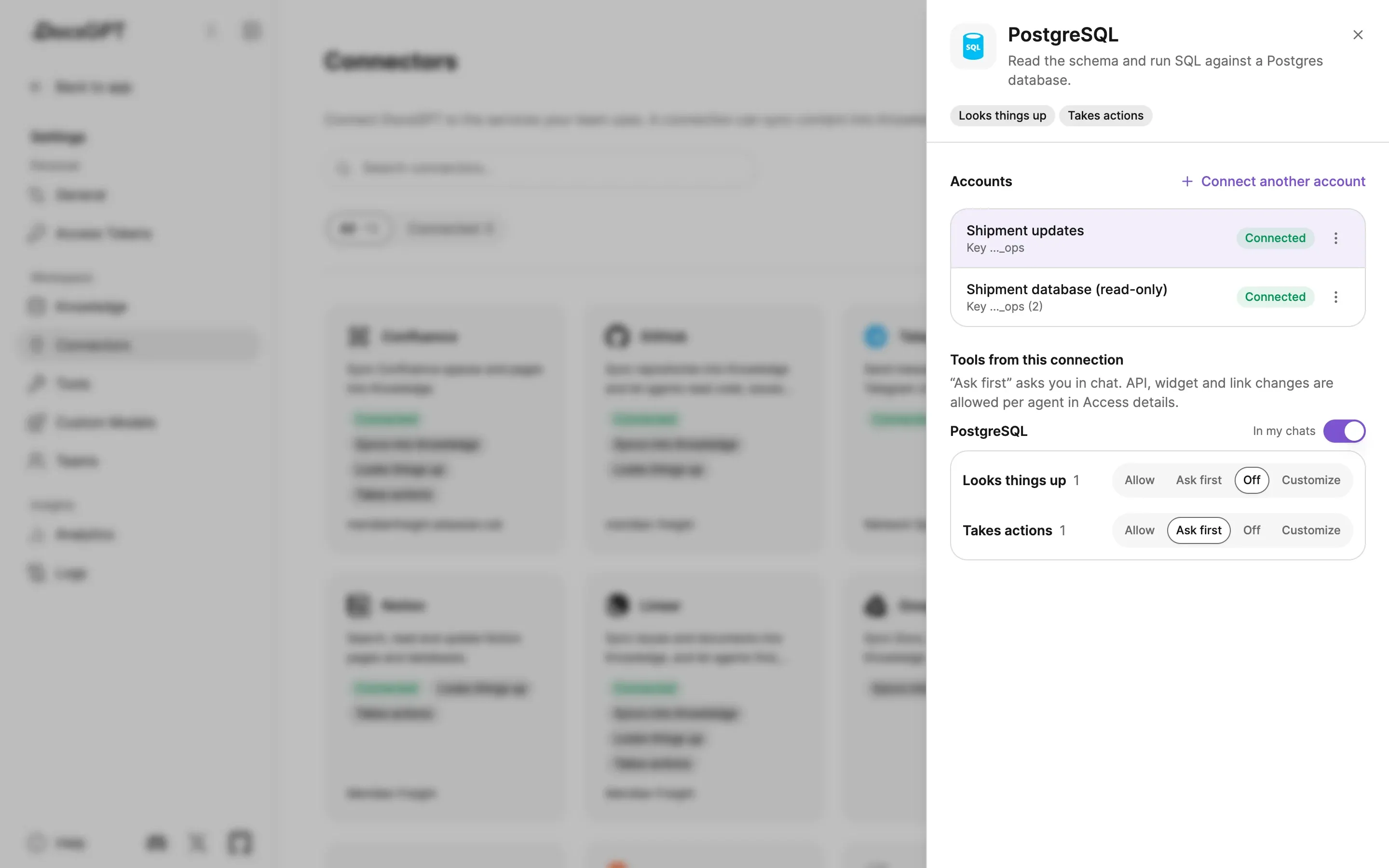
Each action is a read or a write, and each is set to Allow, Ask first or Off.
Allow · Ask first · Off
- 04
Share it
Share the tool or the synced knowledge with people and teams, and choose whose account a shared tool runs with.
Your account · Each person's own
Per-action permissions
Every action a connection offers is a read, which looks something up, or a write, which changes or sends something. Each action is set to Allow, Ask first or Off. Writes default to Ask first, and an action DocsGPT cannot classify counts as a write.
Under Customize, each parameter is either left to the AI or fixed. A fixed value is sent on every call; the AI never sees it and cannot change it, even when a prompt asks it to.
- Reads
- Allow by default
- Writes
- Ask first by default
- Parameters
- Let AI decide · Always use
- Accounts
- several per service, named
Connect from the chat
When an agent needs an account you have not connected, the answer shows a Connect prompt instead of failing. Connect, and the answer carries on from where it stopped.
Each step names the service that ran it, such as "Searched Notion" or "Used Linear: create issue", and citations from synced files read "From Google Drive". Answers never show which account was used.
connect prompt · step names · from google drive
Shared tools, each person's account
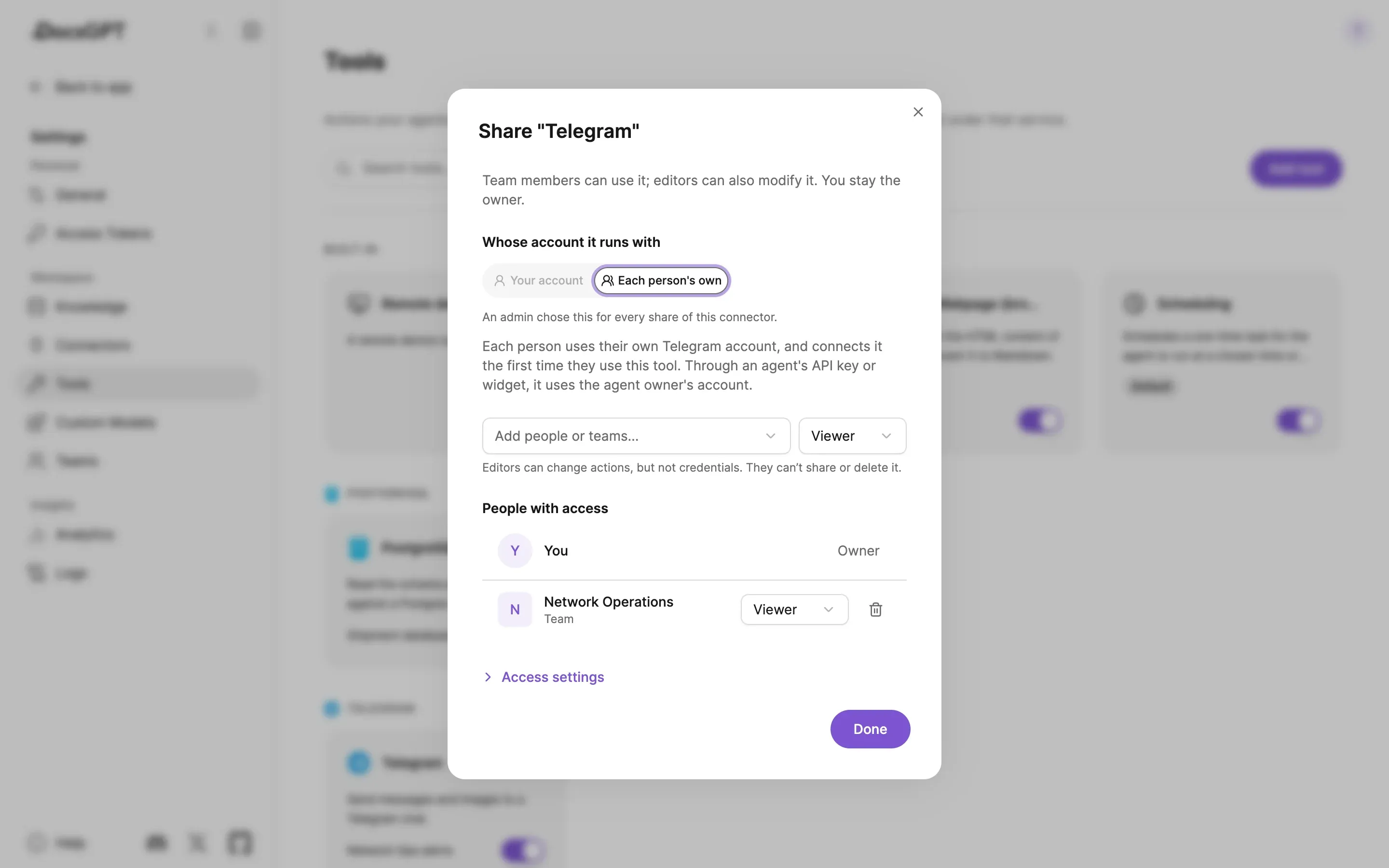
Sharing a connected tool asks whose account your team uses. With Your account, everyone acts as you, and members' write actions always need approval. With Each person's own, every member connects their own account the first time they use the tool.
Editors can change a shared tool's actions but not its credentials, and cannot share or delete it. Through an agent's API key or widget, a tool uses the agent owner's account, and write actions run only where the owner has allowed them.
your account · each person's own · viewer · editor
Admin governance
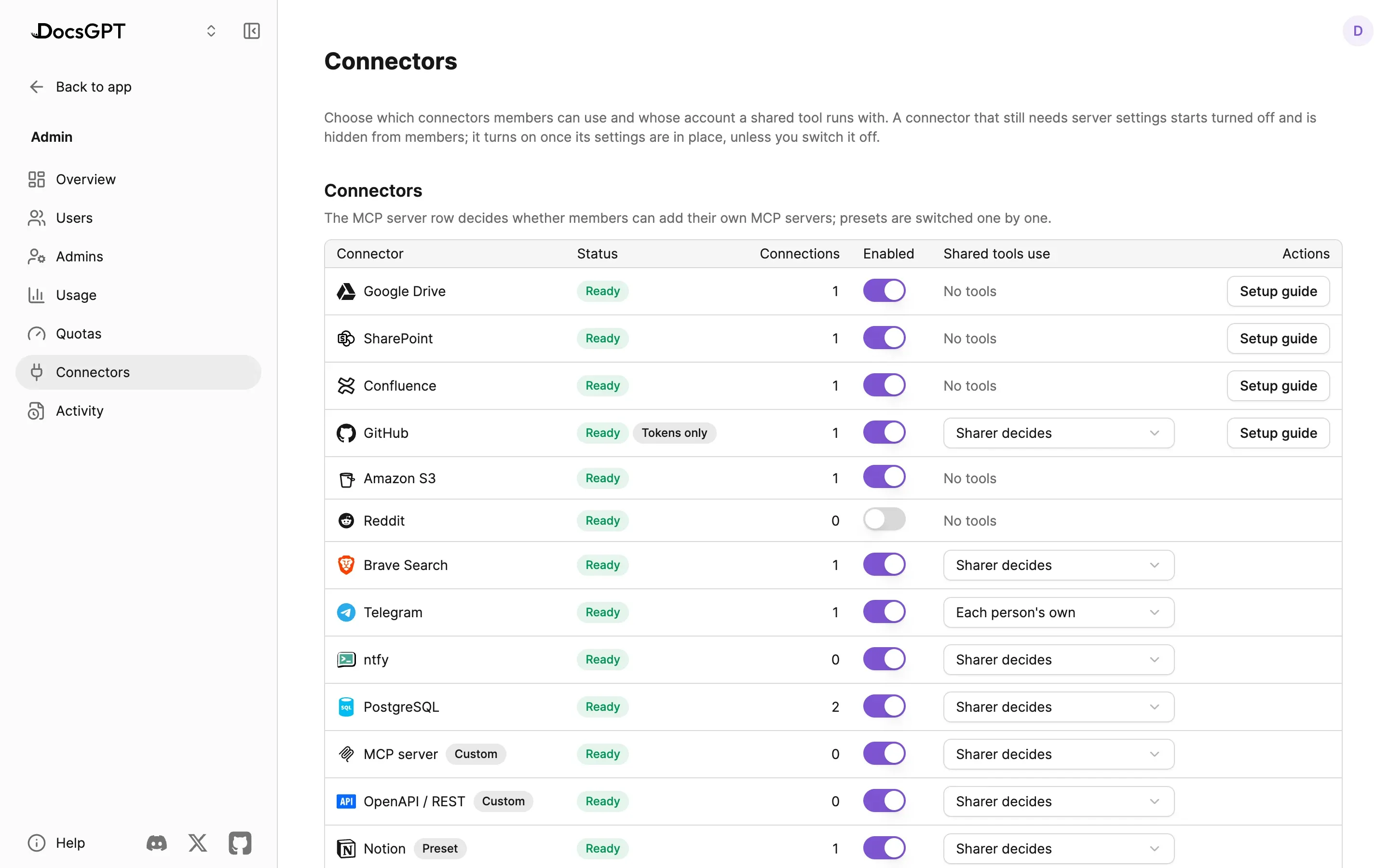
Admin › Connectors decides which connectors members can use. Turning one off hides it, stops its tools and pauses its syncs; existing connections are kept.
Per connector, admins also set whose account shared tools run with, allow or forbid write access (GitHub changes, for example), and decide whether members may add their own MCP servers. The setup guide shows the redirect URI to register and any server settings still missing. Policy changes are recorded in Admin › Activity.
- Enabled
- per connector
- Shared tools use
- sharer decides · sharer's account · each person's own
- Write access
- per connector
- Custom MCP servers
- on · off
Credentials stay encrypted on the server
Every connection's credentials are encrypted on the DocsGPT server and locked to the person who connected them. They are never sent to the browser, so nobody can read a token back out of the app.
The encryption key can be rotated whenever policy asks, and DocsGPT re-encrypts every saved connection with the new key. On your own deployment, the key is yours.
When a sign-in expires, the connection is marked Reconnect needed, its syncs pause and its owner is notified. Reconnecting picks up where it left off.
- Stored
- encrypted on the server
- Locked to
- the connection's owner
- In the browser
- never
- Key rotation
- re-encrypts every connection
- Expired sign-in
- syncs pause · owner notified
Bring your own connector
The catalog is a starting point. Any remote MCP server, or any API with an OpenAPI spec, becomes a connector with the same permissions, sharing and encryption as the built-in ones.
Here DocsGPT is the MCP client, calling your servers. DocsGPT is also an MCP server, so Claude, Cursor and other clients can search your agents' knowledge: see API, MCP & Widgets.
add custom tool · mcp server · openapi / rest · read · write
How it runs privately
Connections, their encrypted credentials, syncs and tool calls all run in the DocsGPT backend. On Managed, On-premises and Air-gapped deployments the credentials stay in your instance.
Four deployment postures, one code base. Compare deployment options →
Inside your network
- connections · encrypted credentials
- sync workers
- agent tool calls
- admin connector policy
managed · on-premises · air-gapped
Cloud
Arc53 runs the backend and holds the encrypted connections. All connectors available.
Air-gapped
No route to outside services, so Google Drive, SharePoint, Confluence, GitHub and the MCP presets are not available. A PostgreSQL database inside your network still works.
Frequently asked questions
How do I connect SharePoint to a private AI?
- An admin registers an app in Microsoft Entra ID and sets its client ID and secret on the DocsGPT server. Members then connect SharePoint / OneDrive from Settings › Connectors, pick the files and folders to sync, and choose how often they refresh. Step by step: SharePoint connector docs.
Can agents change things in my tools, or only read them?
- Both, under your control. Every action a connection offers is a read or a write: reads default to Allow, writes default to Ask first, which asks you in chat before the change is made. You can set any action to Off, and an admin can turn off write access for a connector altogether.
Where are connector credentials stored?
- Encrypted on the DocsGPT server and locked to the person who connected them. They are never sent to the browser, and the encryption key can be rotated at any time; on your own deployment, the key is yours.
Can each person use their own account?
- Yes. When you share a tool, choose Each person's own and every member connects their own account the first time they use it. Choose Your account and members act as you; if the tool can write, their changes always need approval. An admin can fix one mode for every share of a connector.
See DocsGPT on your documents
A 30-minute demo on your use case, or a free on-premises review with an engineer.