An agent that reads your Google Drive and files issues in Linear is holding credentials for you. Before DocsGPT 1.0, those lived wherever they were first needed: OAuth tokens on the Drive, SharePoint and Confluence sources, an API key on each tool, a sign-in on each MCP server. Each one was set up, renewed and revoked on its own.
1.0 moves all of them onto connections: one signed-in account, or one saved key, for one service. Synced knowledge and agent tools both point at it, so you sign in once, reconnect once and disconnect in one place. The 1.0 release post gave the overview. This is the detail, from the first sign-in to rotating the key that encrypts it all.
Text version
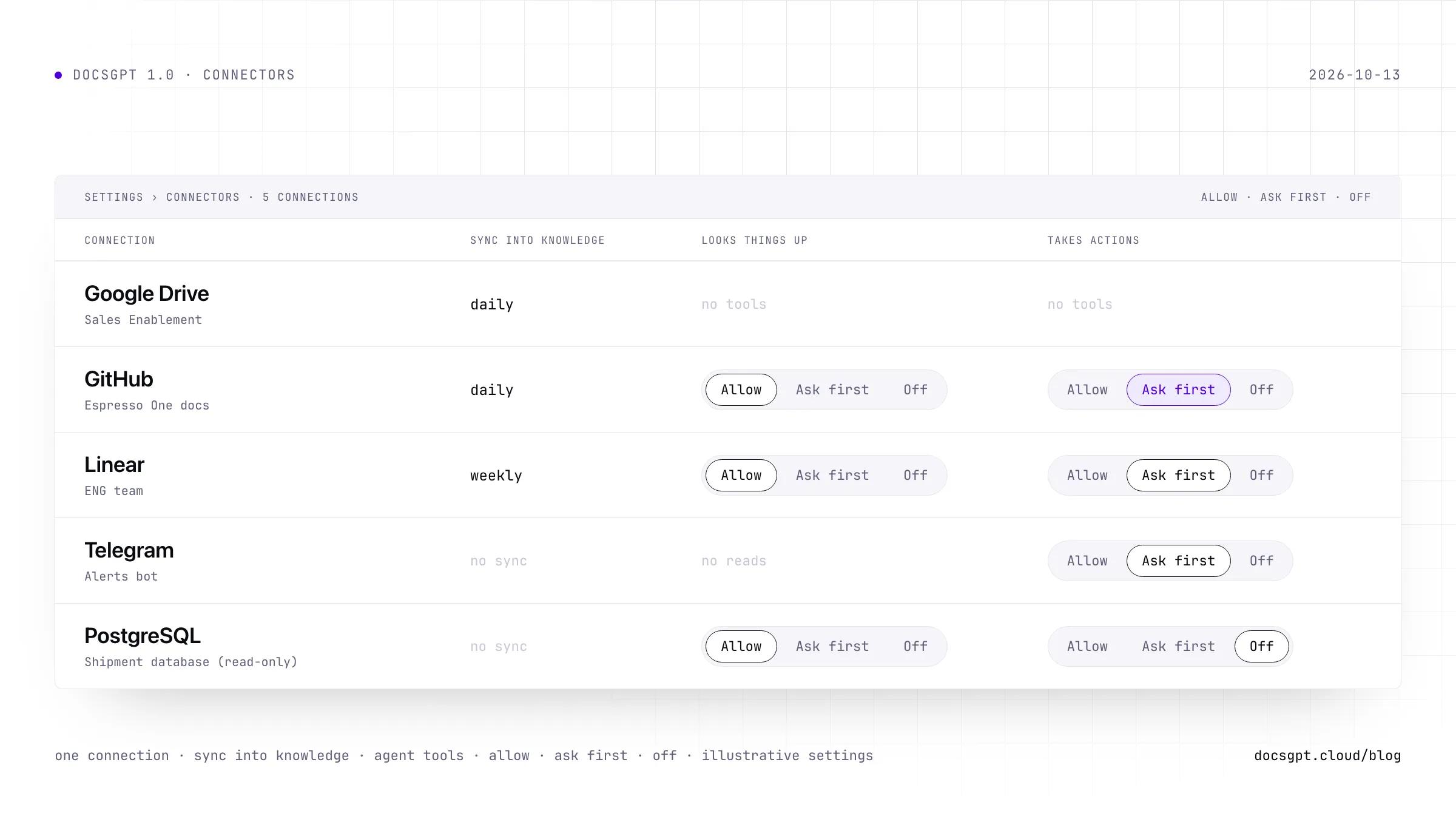
You sign in to a service once, with OAuth, a token or an API key. That creates a connection, highlighted, which holds the encrypted credential and is bound to the person who connected it; you can hold several per service, each named. The connection feeds two things: Knowledge, which syncs never, daily, weekly or monthly, and agent tools, whose reads and writes are each set to Allow, Ask first or Off.
Connect Once, Then Choose What It Sets Up
Open Settings › Connectors, pick a service and sign in. OAuth services open the provider's sign-in page in a pop-up; the rest ask for a key or a token. DocsGPT then asks what the connection should set up. One switch lets agents use the service's tools. The other, Sync into Knowledge, picks the files, folders or repositories to sync, how often (never, daily, weekly or monthly) and the same chunking options as an upload.
After that, the connector's page is where you manage it. Sync now runs a sync on demand, Sync more content adds folders later, and Reconnect, Rename and Disconnect act on the account. Disconnecting stops the sync and keeps what already arrived.
GitHub and Linear do both jobs from one sign-in. A GitHub connection syncs repositories into Knowledge and gives agents GitHub's own MCP server, read-only until you also let agents make changes. A Linear connection syncs issues with their comments, and project documents, and lets agents find, create and update issues.
Built-In Connectors, MCP Presets and Custom Ones
The catalog has three kinds of connector. Built-in connectors ship with DocsGPT: Google Drive, SharePoint and OneDrive, Confluence, GitHub, Amazon S3, Brave Search, Telegram, ntfy and PostgreSQL. MCP presets are vendor-run MCP servers that sign in with OAuth and need no admin setup: Notion, Linear, Jira & Confluence, Sentry, Stripe, ClickUp, Zapier, Trello, Miro and Resend. Anything else connects as a custom MCP server or an OpenAPI / REST spec.
Amazon S3 also takes an S3-compatible endpoint, so a MinIO or Cloudflare R2 bucket syncs the same way. And Confluence does two jobs under two names: the built-in connector syncs pages, while the Jira & Confluence preset gives agents actions.
| Connector | Kind | Syncs into Knowledge | Agent tools |
|---|---|---|---|
| Google Drive | built-in | yes | no |
| SharePoint / OneDrive | built-in | yes | no |
| Amazon S3 | built-in | yes | no |
| Confluence | built-in | yes | no |
| GitHub | built-in | yes | reads, opt-in writes |
| Brave Search | built-in | no | reads |
| Telegram | built-in | no | writes |
| ntfy | built-in | no | writes |
| PostgreSQL | built-in | no | reads, writes |
| Notion | preset | no | reads, writes |
| Linear | preset | yes | reads, writes |
| Jira & Confluence | preset | no | reads, writes |
| Sentry | preset | no | reads, writes |
| Stripe | preset | no | reads, writes |
| ClickUp | preset | no | reads, writes |
| Zapier | preset | no | reads, writes |
| Trello | preset | no | reads, writes |
| Miro | preset | no | reads, writes |
| Resend | preset | no | reads, writes |
| MCP server | custom | no | reads, writes |
| OpenAPI / REST | custom | no | reads, writes |
Allow, Ask First or Off, Per Action
Every action a connection offers is a read, which looks something up, or a write, which changes or sends something. DocsGPT sorts them from what the service tells it: an MCP server's read-only hint, an API endpoint's HTTP method (GET is a read), and failing those, the action's name. Anything that isn't plainly a lookup counts as a write.
Each action is then set to Allow, Ask first or Off. Reads start at Allow and writes at Ask first, which asks you in the chat before anything changes. So an agent can search Notion freely and still has to ask before it edits a page.
Under Customize, each parameter of an action is either Let AI decide or Always use a value you set. A fixed value is sent on every call. The model never sees it and can't change it, even when a prompt asks it to. Give a Telegram connection a default chat, for example, and every message goes to that chat whatever the conversation says. Only the tool's owner can change a fixed value.
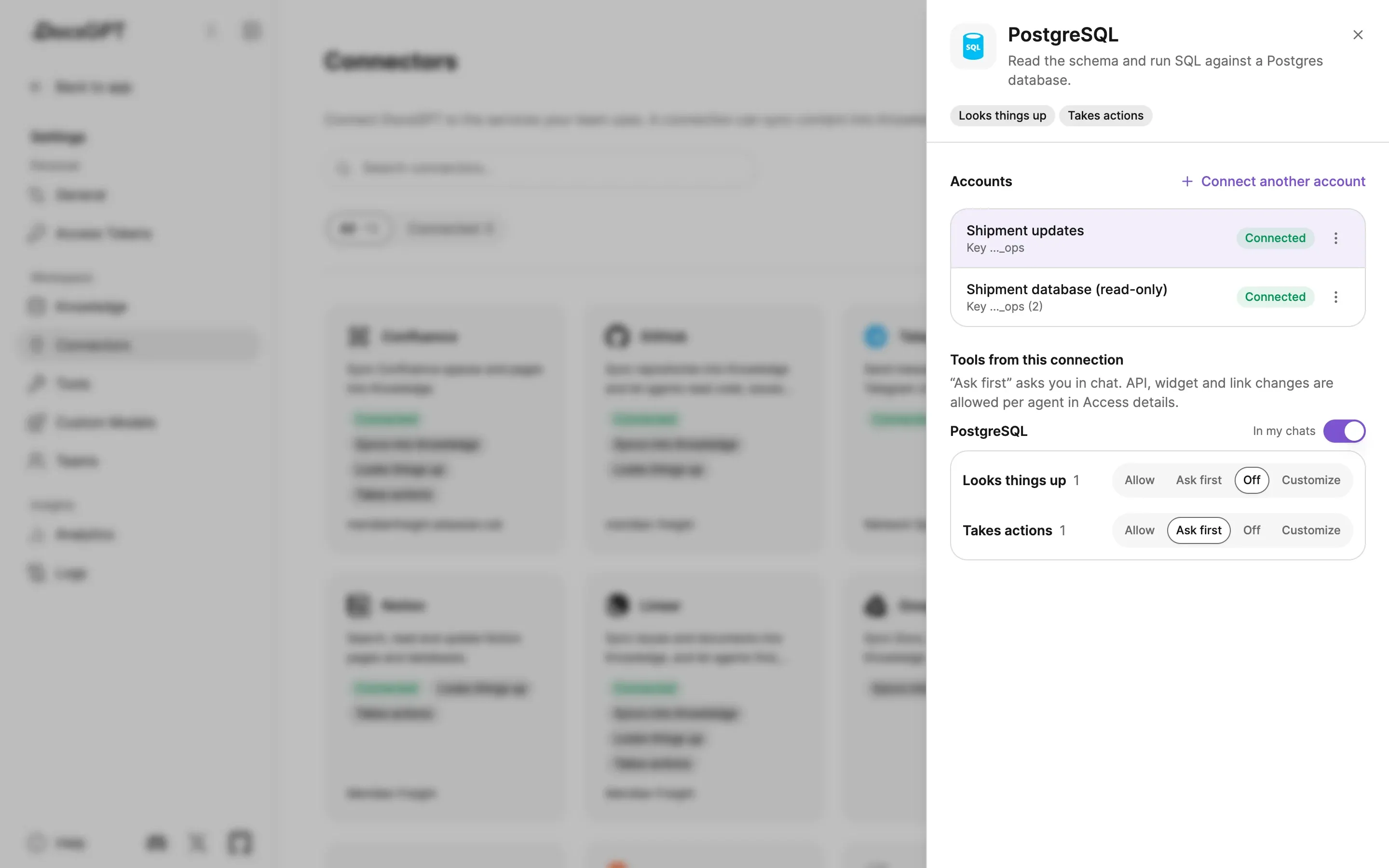
You can also connect one service more than once and name each account: two Telegram bots, or a database login that writes beside one that only reads. Tools then show as "Telegram · Alerts bot", and the model sees each account's actions under its name, so it picks the right one.
What a Connection Looks Like in the Chat
When an agent needs a service you haven't connected, or a connection whose token has expired, the answer shows a Connect prompt instead of failing. Connect, and the answer carries on from where it stopped.
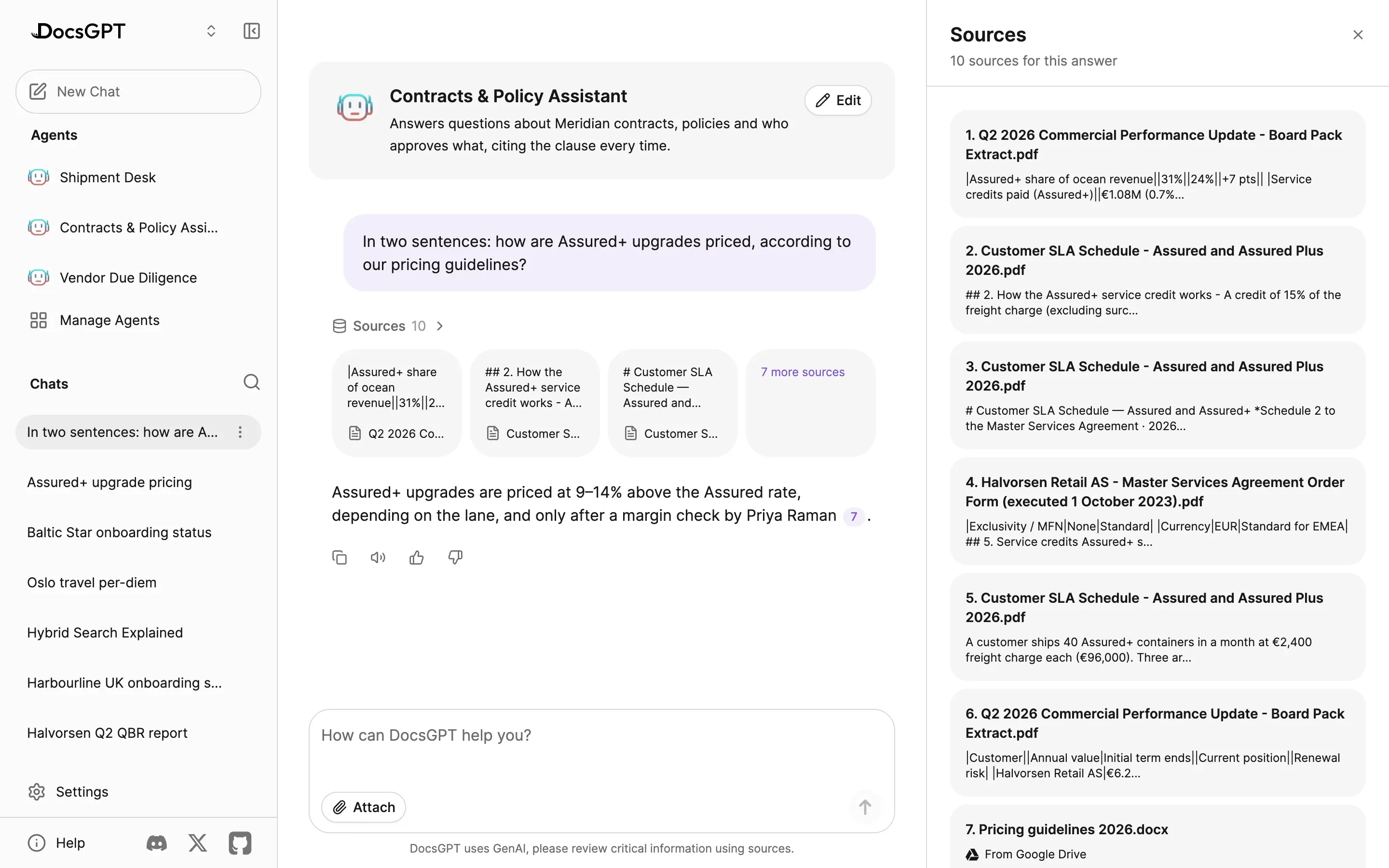
Each step names the service that ran it: "Searched Notion", "Read from Google Drive", "Used Linear: create issue". A citation from a synced file says where the file lives: "From Google Drive". Answers never show which account was used.
Whose Account a Shared Tool Uses
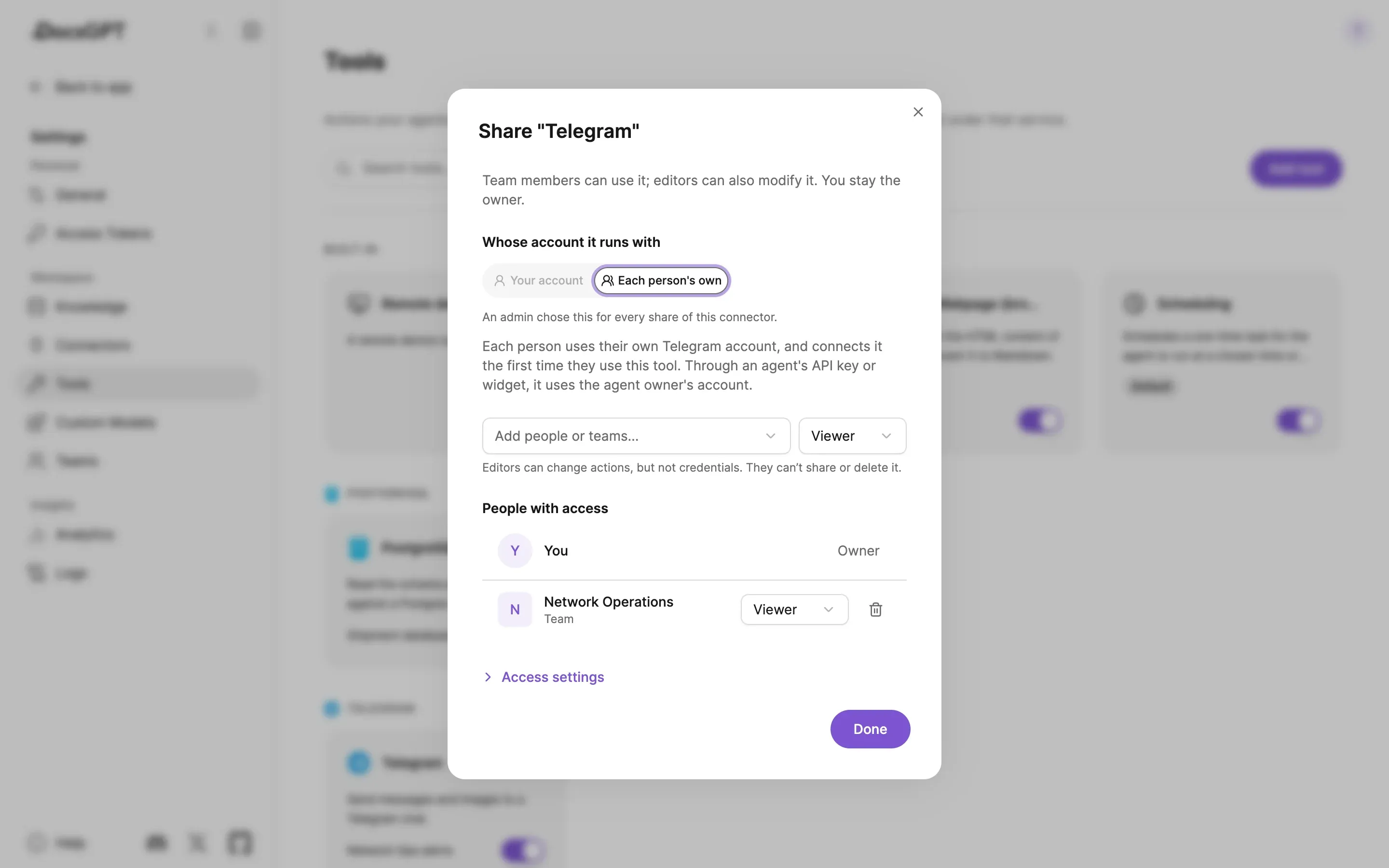
Sharing a connected tool with a team asks one question: whose account do members use? With Your account, everyone acts as you on that service. If the tool can write, you confirm that before sharing, and members' writes always need approval. With Each person's own, every member connects their own account the first time they use the tool, through the same Connect prompt. Tools from OAuth MCP servers default to each person's own.
Agents add two cases. When a team editor adds a tool to an agent whose owner can't use it, the tool runs with the editor's access, and the editor becomes its sponsor. That's never implied: before the editor confirms, a dialog names the tool and who will reach it through the agent. And an agent called through its API key or widget runs with its owner's connections. Nobody is there to approve, so it can read, but writes only where the owner allows it under Access Details › Changes others can make as you.
What Admins Decide in Admin › Connectors
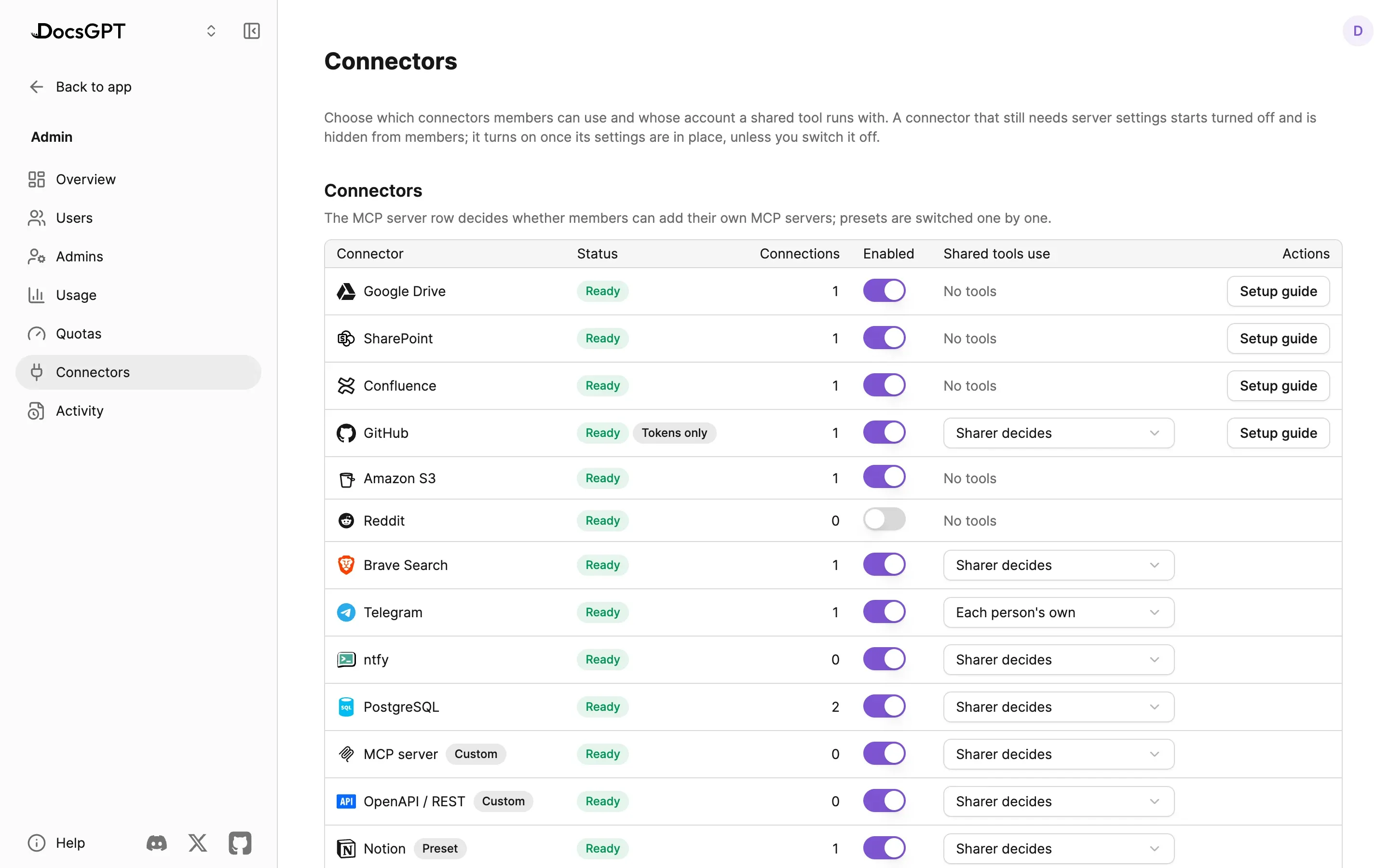
Admin › Connectors lists every connector with its status and how many connections use it. For each one, an admin sets:
- Enabled. Turned off, the connector disappears for members, its tools stop and its syncs pause. Existing connections are kept.
- Shared tools use. The sharer decides per share (the default), or it's always the sharer's account, or always each person's own.
- Write access, where a connector's tools can opt into changes. Today that's GitHub: turn off Let agents make changes through GitHub and every GitHub tool only reads, including the ones already set up to write.
- Custom MCP servers. The MCP server row decides whether members can add their own; presets are switched one by one.
On an OAuth connector, Setup guide shows the redirect URI to register with the provider and which server settings are still missing. A connector without its settings starts turned off and hidden from members. Every change on this page is recorded in Admin › Activity as connector_policy_set, with each setting's old and new value.
Where the Credentials Live
Credentials are encrypted with AES-GCM under a key derived from ENCRYPTION_SECRET_KEY, and bound to the person who connected them. They're never sent to the browser, so nobody can read a token back out of the app. A fresh install generates its own key, and with authentication on, DocsGPT won't create connections while the key is still the public default. On your own deployment, the key is yours.
Rotating it takes four steps and one command, docsgpt connectors reencrypt. Connections that neither the old key nor the new one can open are marked Reconnect needed for their owners. That's the same state an expired sign-in lands in: when a provider rejects a token DocsGPT can't refresh, the connection's syncs pause and its owner gets a notification. Reconnecting the same account resumes them.
One more boundary: custom MCP servers, the API tool and S3 endpoints reach public hosts only, so a connector can't be pointed at localhost or a private address inside your network.
- 01
Keep the old key readable
Move the current value to the previous-key setting.
ENCRYPTION_SECRET_KEY_PREVIOUS
- 02
Set the new key and restart
Set the new value, then restart the API and the worker.
ENCRYPTION_SECRET_KEY
- 03
Re-encrypt
Rewrites every connection and the secrets saved on tools and custom models, and prints how many it rewrote.
docsgpt connectors reencrypt
- 04
Drop the previous key
Remove the previous key once the command reports nothing unreadable.
Bring Your Own, in Either Direction
The catalog is a starting point. Any remote MCP server, or any API with an OpenAPI spec through the API tool, becomes a connector with the same per-action permissions, sharing and encryption as the built-in ones. An imported OpenAPI spec is sorted by method, so its GET endpoints start at Allow and the rest at Ask first.
MCP runs both ways in DocsGPT. Presets and custom servers make DocsGPT an MCP client, calling out to your tools. The MCP server at /mcp makes it a server: Claude, Cursor and other clients call its search_docs tool to search the knowledge an agent uses.
The full catalog, with what each connector syncs and which actions it offers, is on Connectors, and setup for every service is in the connectors docs. If you're deciding where DocsGPT should run, see Deploy. Next in this series: answers you can check.