A help-centre assistant answers a few hundred questions a week, and it gets a handful of thumbs. Two up, one down, the rest silence. Most people who get a poor answer don't rate it. They ask again in other words, write "that's not what I asked", or close the tab and email support. The question the docs team has, what are people asking that we can't answer, sits in transcripts nobody has time to read.
DocsGPT 1.1 added Insights for that. The release post gave it a section; this is the whole of it, from the five figures at the top of the page to the reasons it can be wrong, and what to do on the morning you open it.
Five Figures Before You Read a Transcript
Open an agent, and under Monitoring you'll find Analytics, Insights and Logs. Analytics counts what happened: messages, tokens, tool calls, thumbs. Insights estimates how it went, from the conversations themselves.
The page opens on five tiles:
- Fully answered: answers that fully addressed the question, as a share of questions. Greetings and small talk don't count.
- Goal met: conversations where the person got what they came for, judged once the conversation has gone quiet.
- Frustrated: replies that show clear frustration.
- Asked for a person: replies asking for a person, a ticket or another way to reach you.
- Docs gaps: answers that fell short because the docs didn't have it.
Each tile says what it's a share of ("of 58 questions", "of 31 replies"), and each figure sits next to the same figure for the previous period, so a week where you fixed the docs shows up as a change you can point to.
Under the tiles, Answer status splits every answer into fully answered, partially answered, said it didn't know and asked for details. "Said it didn't know" is grey on purpose: an assistant that declines when the documents have nothing is doing its job. How users replied reads the message that came after each answer. Thanks or confirmed, asked again, pushback or complaint, or moved on to something else. Asked again is the one to watch, because a person who rephrases the same question is telling you the first answer didn't help, without pressing a button. Switch the panel to Sentiment for positive, neutral and negative.
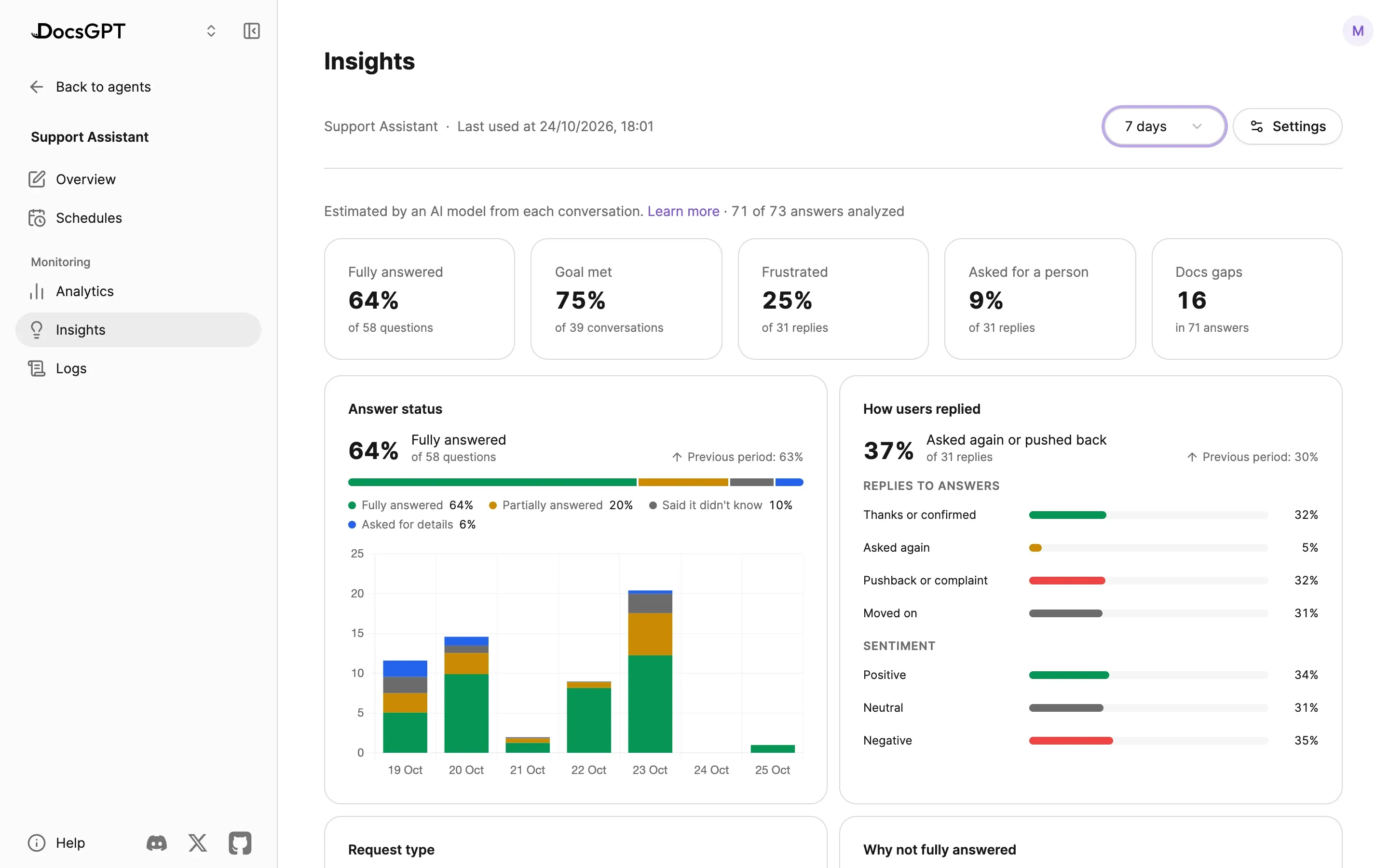
Put it next to the thumbs on Analytics. If thumbs-down are rare but a third of replies push back, the thumbs were never the whole story.
Why Answers Fell Short, and What People Asked
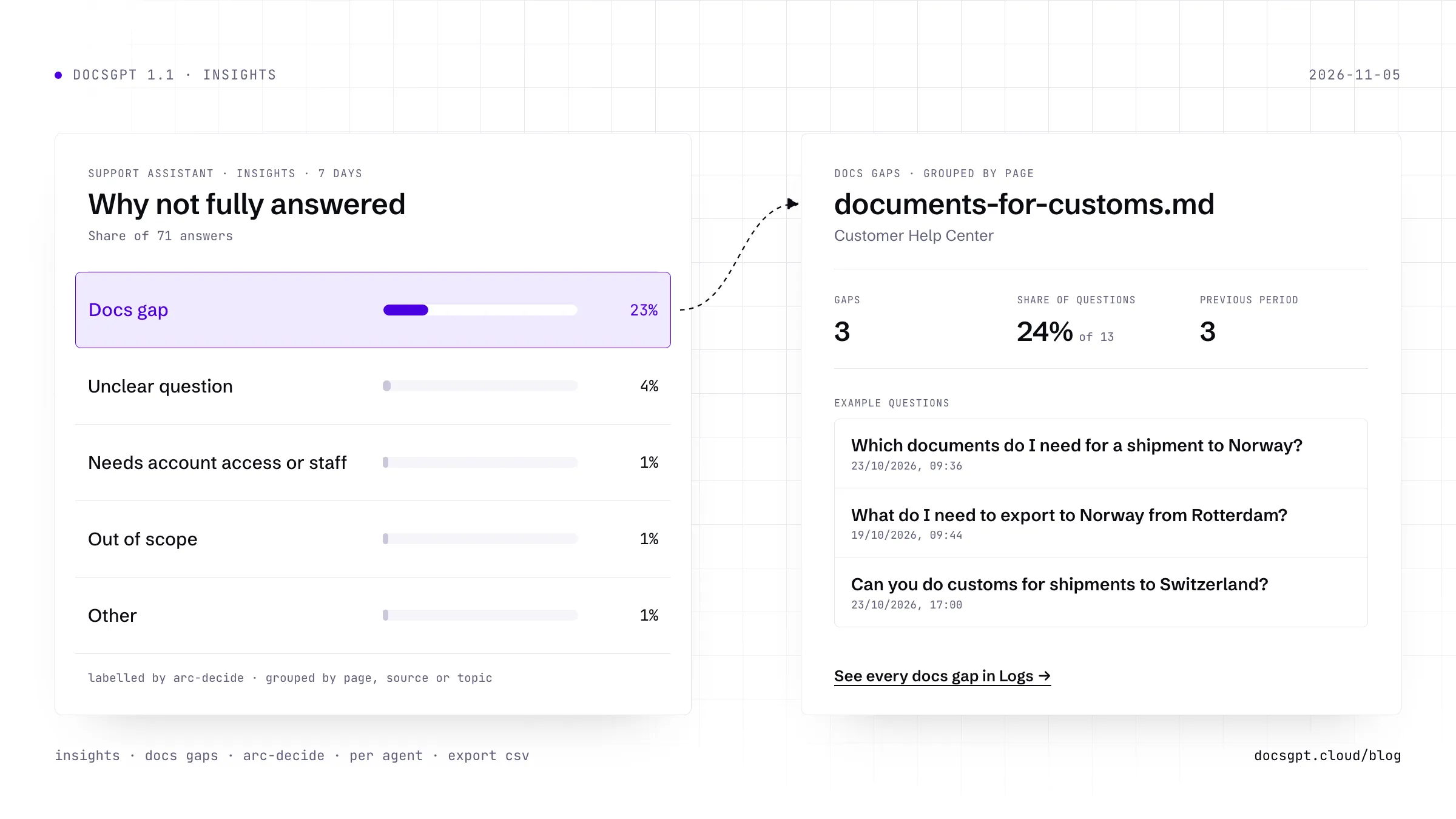
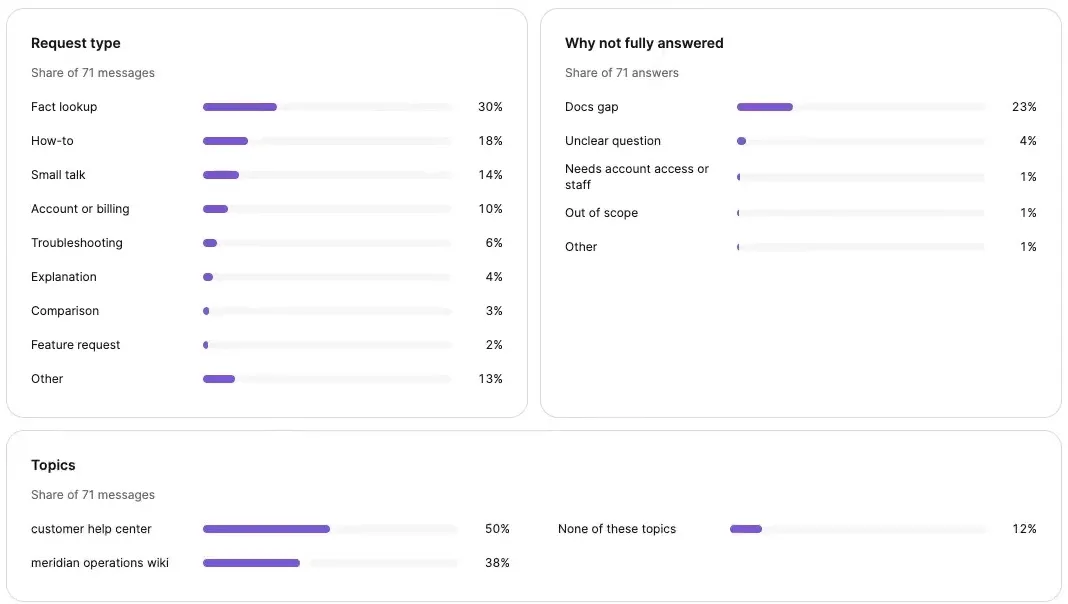
Three panels go one level down. Why not fully answered gives the reason behind every answer that missed: a docs gap, an out-of-scope question, a feature request, something that needs account access or staff, an unclear question. Those are different jobs for different people. A docs gap goes to whoever writes the docs, a feature request to the product team, and "needs staff" might mean the assistant should hand over sooner.
Request type sorts what people ask for: troubleshooting, how-to, fact lookup, explanation, comparison, account or billing, and so on. Topics sorts what they ask about. They start from the folders of the agent's sources, so a docs site with guides/, api/ and billing/ gets those three topics without any setup, and you can add your own, such as "Customs" or "Bug report", with a sentence describing each. A good description is the difference between a topic that sorts well and one that doesn't.
Docs Gaps: The List of Pages to Write
The table at the bottom of the page is the reason most people open it. Docs gaps lists the answers that fell short because the documents didn't cover the question, grouped by the page the search came closest to. You can also group by Source, or by Topic when the agent has topics.
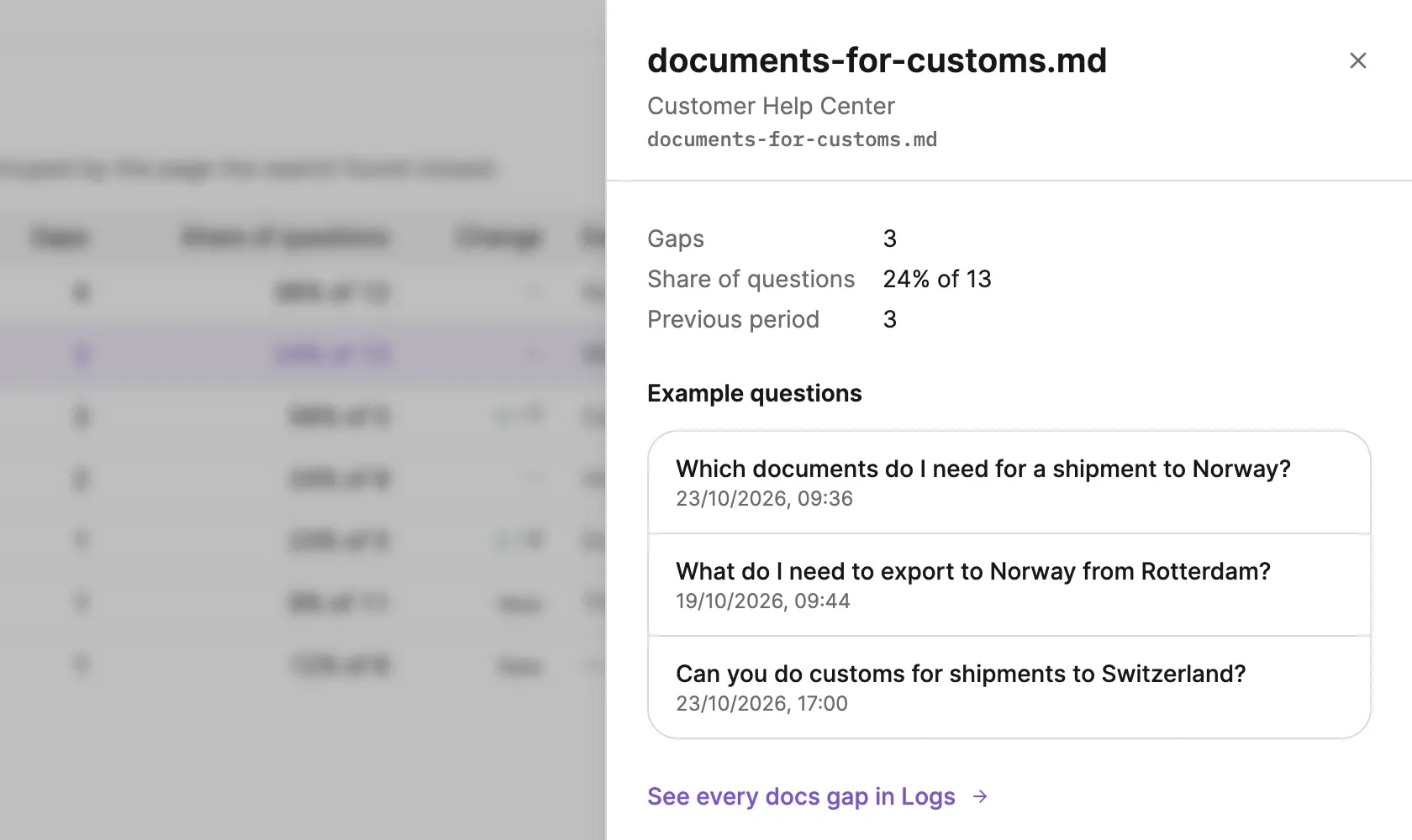
Each row shows how many gaps there were, their share of questions for that page, the change since the previous period and an example question. A row reads "documents-for-customs.md, 3 gaps, 24% of 13 questions", with one of those questions beside it: Which documents do I need for a shipment to Norway? That's a writing task, in the reader's own words.
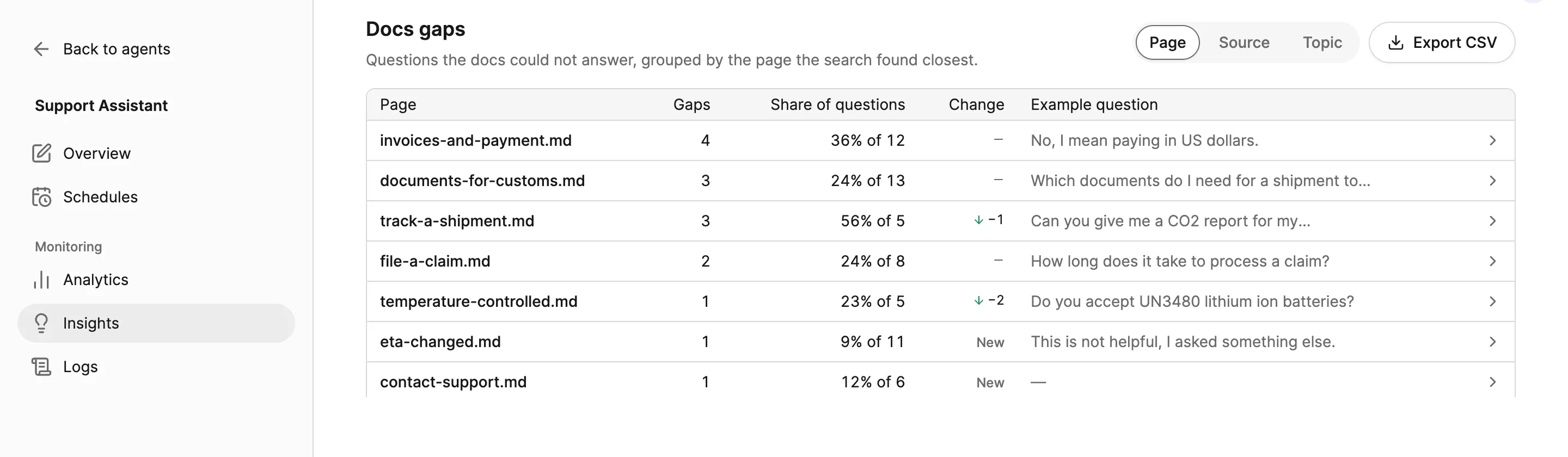
Grouping by the closest page tells you where the reader went looking. A gap under invoices-and-payment.md about paying in US dollars probably belongs on that page as a new section, where the next person will look for it too. The Change column shows whether last week's fix worked: a down arrow on the page you rewrote is the result you were after.
Open a Row, Read the Questions
Select a row and a panel opens with that page's figures and up to five example questions, likeliest first. Each one opens Logs on its conversation, so you can read what the assistant said, which passages it retrieved and what the person did next. See every docs gap in Logs opens the full list, filtered.
Logs carries the same labels as chips on each chat row (Docs gap, Frustrated, Asked for a person) and a filter for them, so "every conversation this week where someone asked for a person" is two clicks. For the people who write the docs, Export CSV downloads the table with full page titles, the example questions and a range for every figure. And if nobody on your team will remember to open the page, the agent's owner can get a weekly docs-gap summary as a notification, with the top gaps and a link straight to them.
Every Conversation, Wherever It Came From
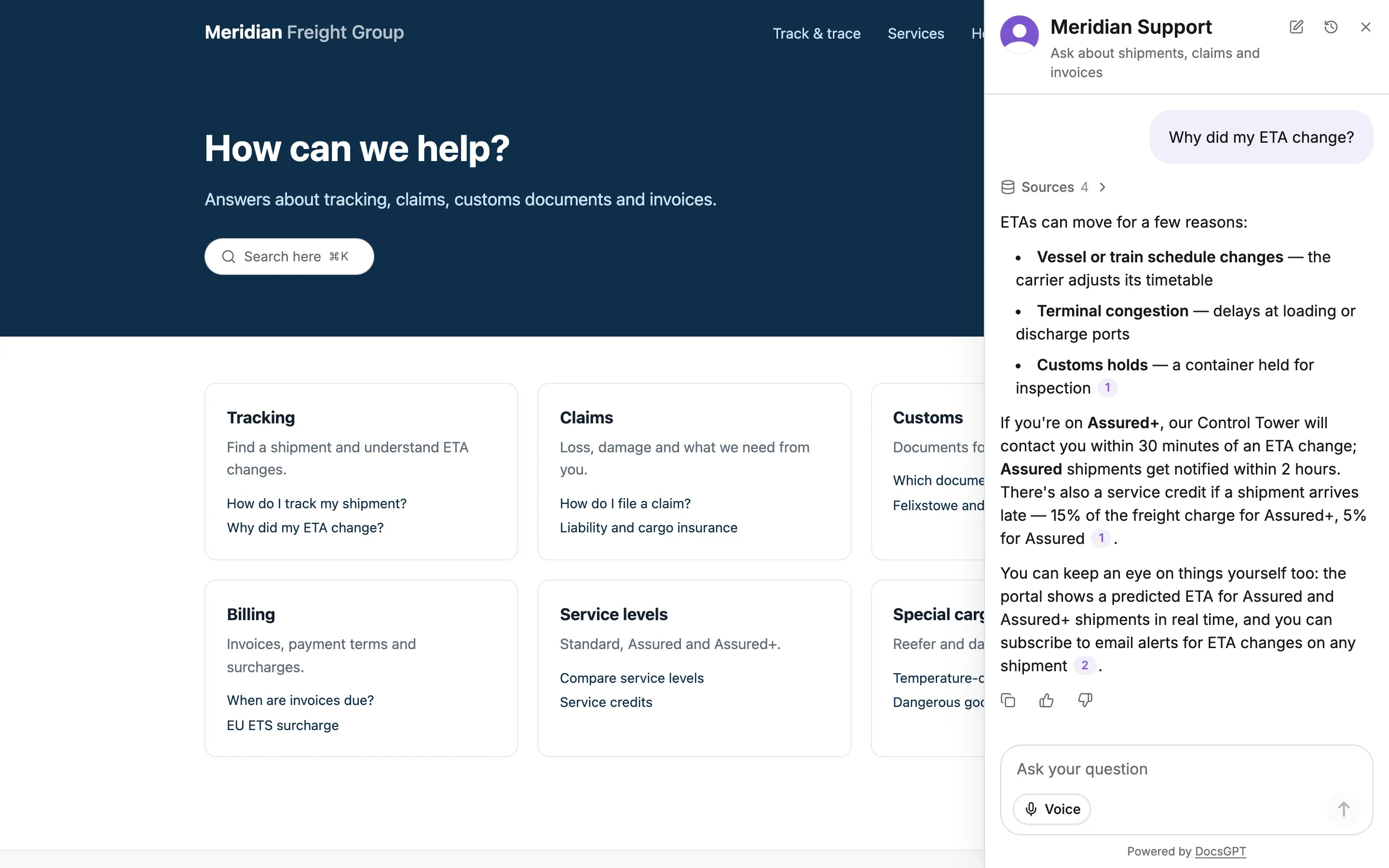
An agent's Insights cover all of its traffic, as its owner sees it: chats in the app, teammates using a shared agent, public links, the API and the chat widget on your docs site. That last one is the reason Insights exists. A widget answers people you'll never meet, on pages nobody on your team is watching, and the docs gaps from those conversations are the ones you'd otherwise never hear about.
Two other places have Insights. Your own account has them under Settings › Monitoring, across the agents you chat with, and workflows have an Insights tab in the builder. Who sees an agent's Insights follows who sees its logs: the owner and editors, and viewers if the owner lets them. It isn't an organisation-wide dashboard; spend and usage across the company stay in Admin › Usage.
A Small Model Reads Every Conversation
Labelling every message with a chat model would cost more than the conversations did. Insights uses arc-decide, the 0.4B-parameter model we trained for this kind of call and published on Hugging Face. It never writes text. It answers typed questions about a conversation (was this fully answered, is this reply frustrated, which topic is this) with a probability for each answer.
- 01Conversationsapp · widget · api
- 02arc-decidein your deployment
- 03Labelsno text kept
- 04Insightstiles · panels · gaps
Text version
Stored conversations from the app, the widget and the API are read in the background by arc-decide, DocsGPT's decision model, inside your deployment. It labels each answer and reply: answered or not, how the person replied, why an answer fell short, the topic. The labels hold no text. Insights add them up into the tiles, the panels and the docs-gap table.
It runs in the background, a few minutes after each message, never while someone is waiting for an answer, which is why a CPU is enough. By default it runs inside the DocsGPT API process, in your own deployment, so the conversations it reads never leave it, and with a local copy of the model Insights work fully air-gapped. The labels hold no text, live apart from the conversation and are deleted with it. If an agent's users shouldn't be analysed at all, its editors turn off Collect insights for that agent.
On DocsGPT Cloud, Insights are on for every agent. On your own deployment, the operator turns them on with one setting, DECISION_ANALYTICS_ENABLED; the decision model docs cover where to run it. The same model also scans for prompt injection and ranks passages by relevance, which we'll cover in its own post.
What Insights Can't Tell You
Every figure on the page is an estimate. An answer the model thinks is 70% likely to be fully answered adds 0.7 to that tile, not 1, so uncertain answers count for what they're worth. A figure built on fewer than 10 items isn't shown at all; you'll see "Not enough data yet" until there's traffic behind it. Some labels hold up better than others, and the Insights docs say how far to trust each one. Read the trends; don't argue over a point.
The bigger limit is in the name. A docs gap means the answer fell short because the right text wasn't in front of the model. Insights can't tell whether that's because the page doesn't exist or because search didn't find it. Both show up as gaps, and that's where two other tools come in. Test retrieval runs a question through the agent's real retrieval and shows you the chunks it gets back, with their scores. Paste in the example question from a gap row: if the right page comes back, the docs are fine and the answer went wrong somewhere else; if it doesn't, either the page is missing or search needs help.
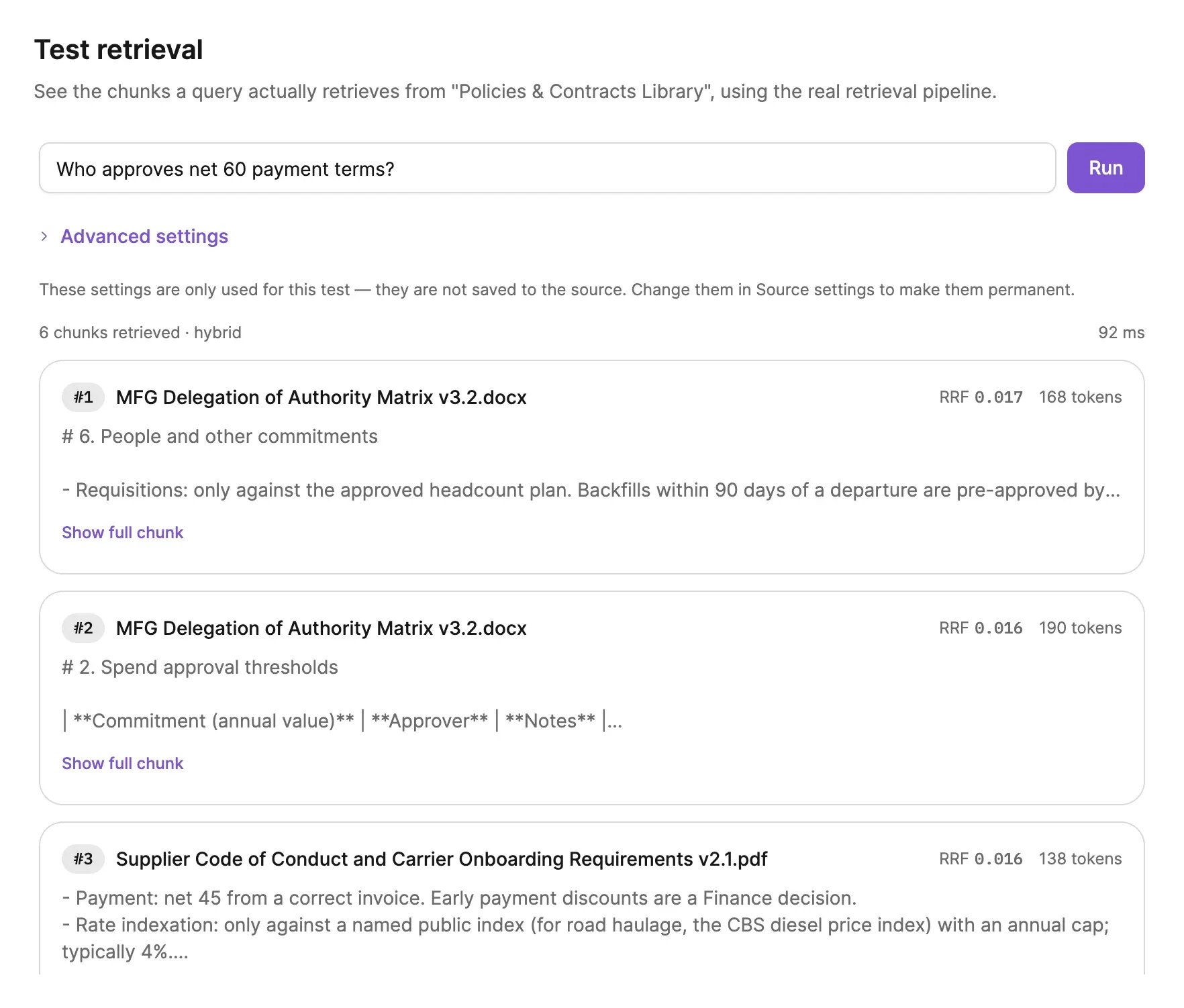
When the page exists and still ranks too low, Relevance re-scores retrieved passages with the same decision model so the right one comes first. It's set per source, and it's built for deployments that run the model on a GPU. Search & Retrieval covers both.
Give It a Week
Pick the agent with the most traffic, ideally one behind the widget, and leave it alone for a week. Then open Insights, sort out the top three rows of Docs gaps with whoever owns those pages, and look again the following week. The Change column will tell you whether it worked.
Insights has the full list of what's on the page, and Deploy compares Cloud, Managed, on-premises and air-gapped, all of which run it. If you want to see it on your own documents first, talk to us. Next in this series: the Activity tab, and what your agents are doing while you're not looking.