What Needs You, What's Running, What Ran: Activity in DocsGPT 1.1
DocsGPT 1.1 Activity shows what your agents are running, what waits for your approval, every scheduled run on a calendar, run history and monitors.
Pavel Torbin11 min readagents
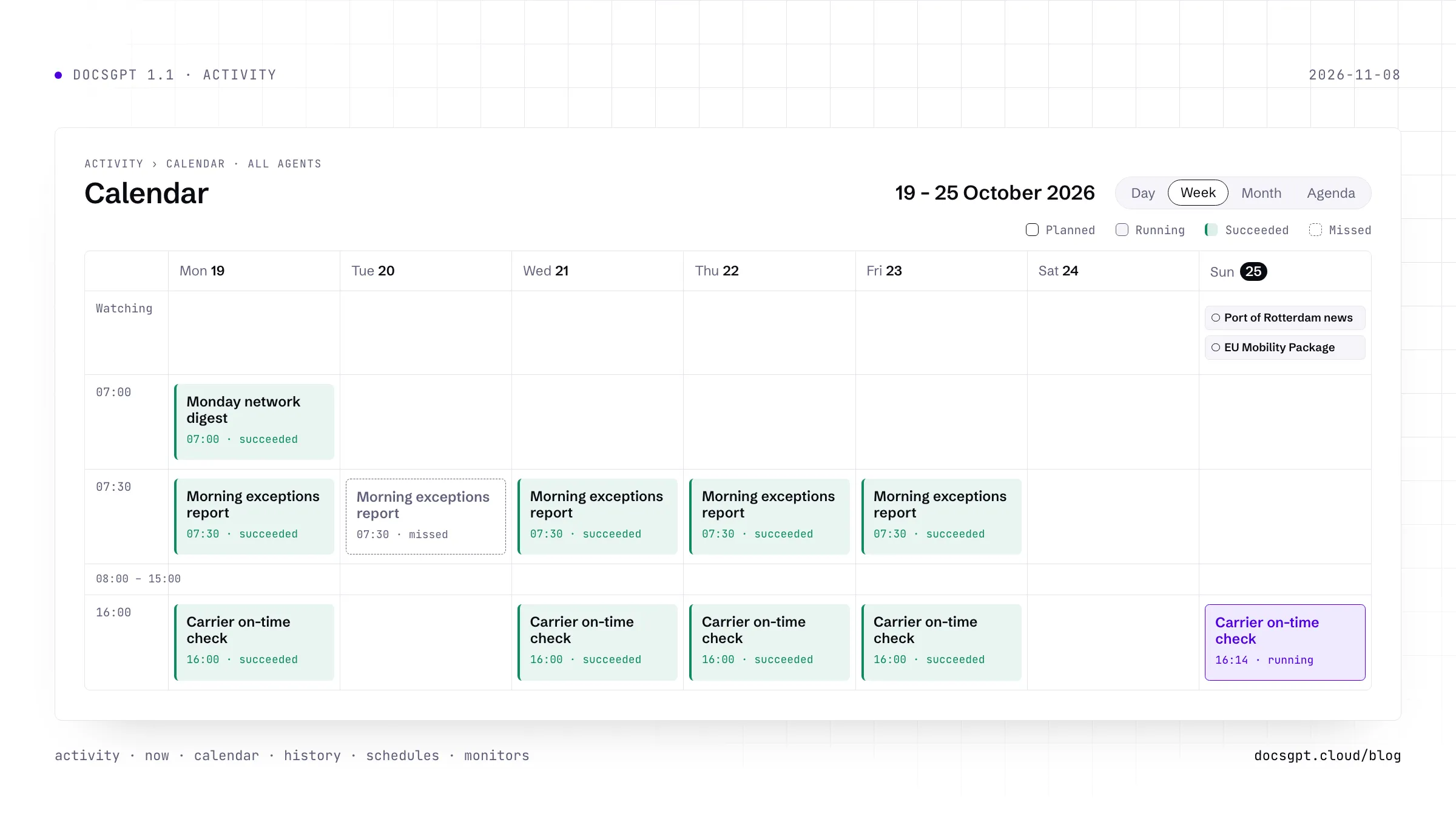
Three weeks ago you set up an ops assistant to send a morning exceptions report at 7:30 every weekday. It worked, so you stopped thinking about it. Then on a Tuesday the report didn't arrive. Nobody noticed until Thursday, when someone asked where it was, and the only way to find out what happened was to open the agent, then its logs, then the run.
Agents that run on a schedule, from a webhook or inside a workflow do their work where nobody is looking. DocsGPT 1.1 gave all of that one place: Activity, right under New Chat in the sidebar. The release post listed its five views. This post goes through each, then how you hear about a run without opening anything, and how Activity differs from Logs and the admin's audit log.
Now: What Needs You, What's Running, What's Next
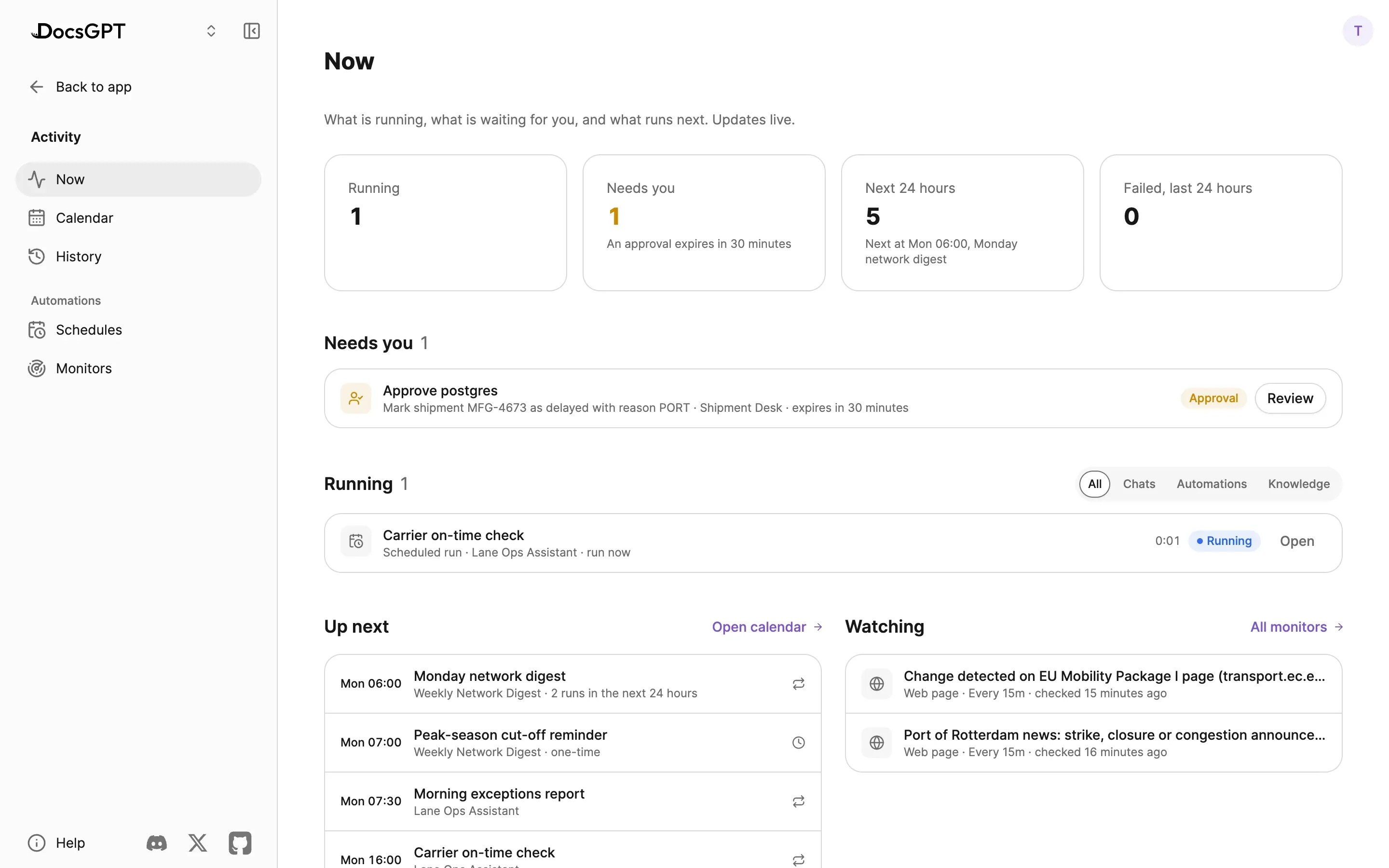
The first view answers the question you have when you sit down: is anything waiting for me? Now updates live, and four cards on top count what's running, what needs you, the runs due in the next 24 hours and what failed in the last 24.
- Needs you lists the things only you can unblock: a tool call waiting for your approval, with how long until the approval expires; a schedule that paused itself after failing several runs in a row; a connection whose sign-in expired. Review, Resume and Reconnect take you straight to the fix. When nothing needs you, the section isn't there.
- Running lists everything in progress across your account: answers being written in any chat, background jobs, scheduled, webhook and workflow runs, and knowledge being indexed. A workflow shows the step it's on. A chat answer can be stopped from here, as if you'd pressed Stop in the chat.
- Up next lists the schedules and knowledge syncs due in the next 24 hours. A run whose time has already passed shows as Overdue, which is the early warning that the scheduler is behind.
- Watching lists the monitors you have running (more on those below).
The Activity row in the sidebar carries the short version: how many things are running, and a dot when something needs you. Amber for an approval or a connection to reconnect, red for a schedule that paused itself.
The Calendar Shows the Run That Didn't Happen
Calendar lays out every schedule and knowledge sync by Day, Week, Month or Agenda. Future slots come from each schedule's repeat rule; past slots are coloured by how the run went, green for succeeded, red for failed, blue while it's running. Filter by agent, or hide past runs to see only what's coming.
The slot that matters most is the one where nothing happened. If an active schedule should have run and no run started, usually because the worker was down, the slot is drawn with an amber dashed border and the label Missed. That Tuesday report from the opening would have been sitting on the calendar the same morning, marked.
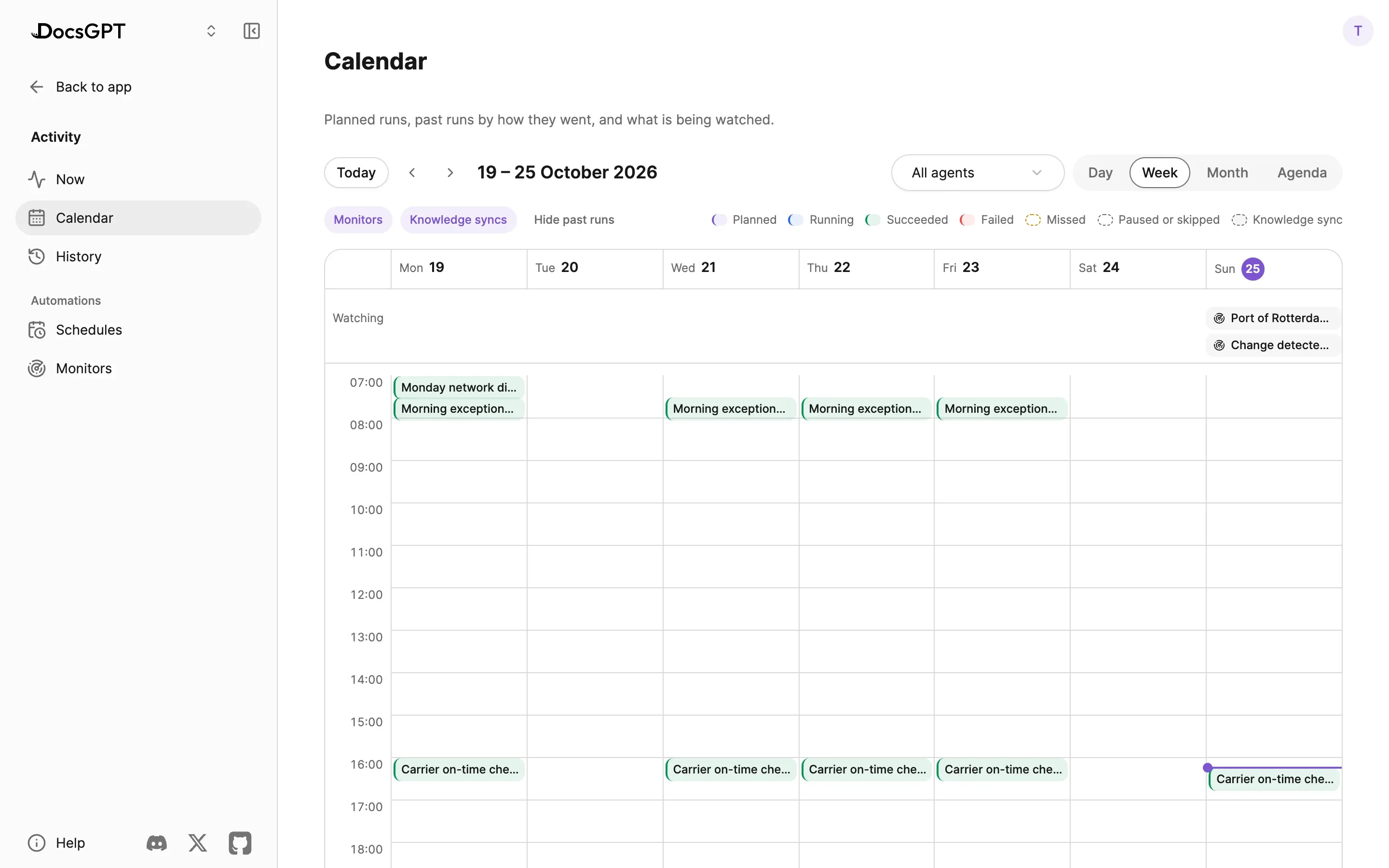
A few details keep the calendar readable. A schedule that runs every hour or more often is one tall block per day with a count, rather than a slot per run. Monitors are bars across the top for as long as they're active. Knowledge syncs get their own grey dashed look, with a warning when a source needs reconnecting. Select a future slot to Run now or open the schedule, and a past one to see its status, output, tokens and error, with a link to the conversation it wrote to.
History: Every Finished Run in One List
History is the record of what your automations did, newest first and grouped by day: scheduled runs, webhook runs, workflow runs, background jobs and the times a monitor woke its chat. Each row has the run, the agent or chat, what started it, the status, how long it took and its tokens. Filter by kind or status, search by name, and look back 7, 30 or 90 days.
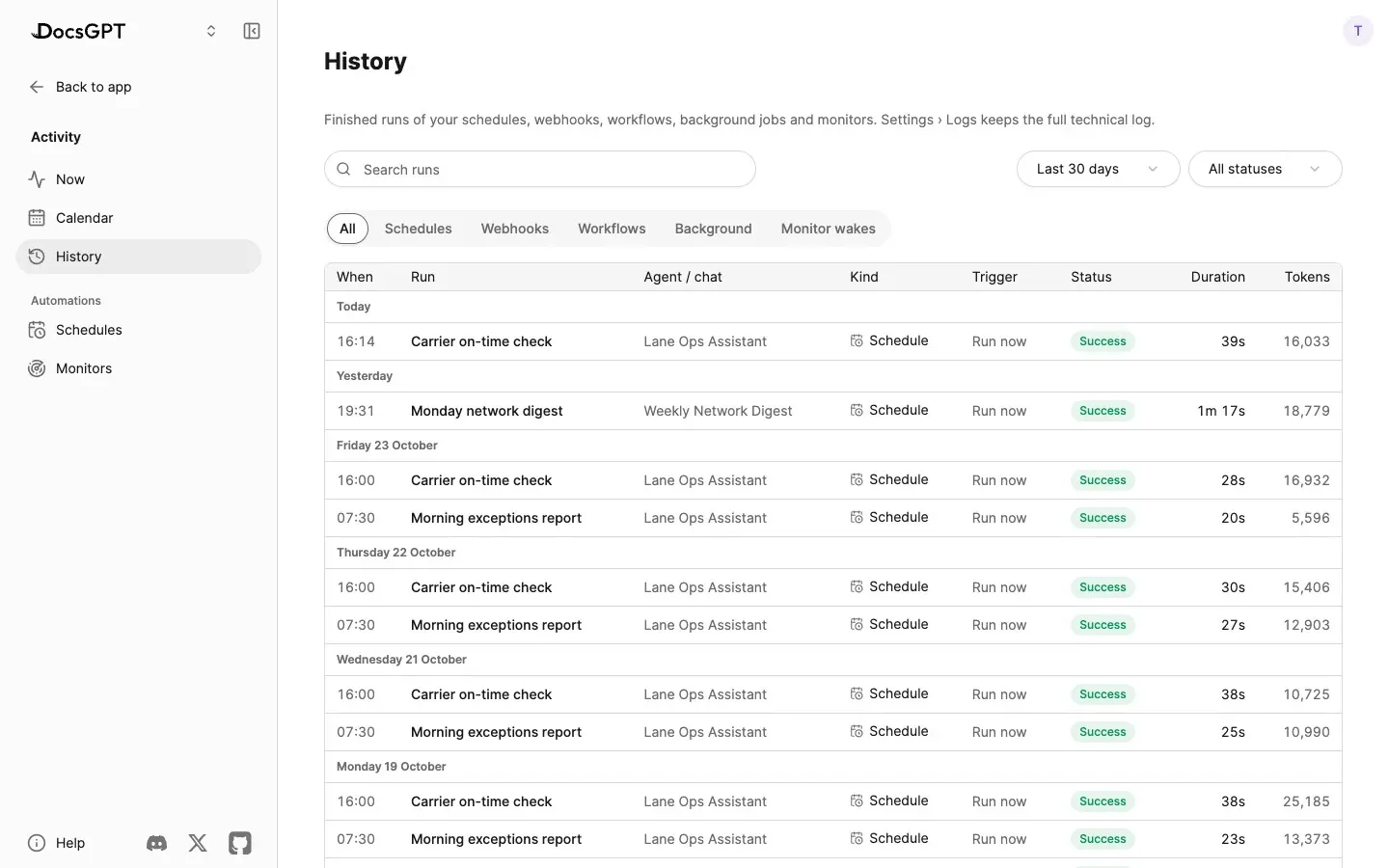
Select a scheduled run for its details, a webhook or workflow run for its execution trace, and a background job or monitor wake to open the chat it belongs to. History is the readable list. When you need every model call and retrieval in a run, it's one click further, in Logs.
Schedules, Including the Ones You Set Up in a Chat
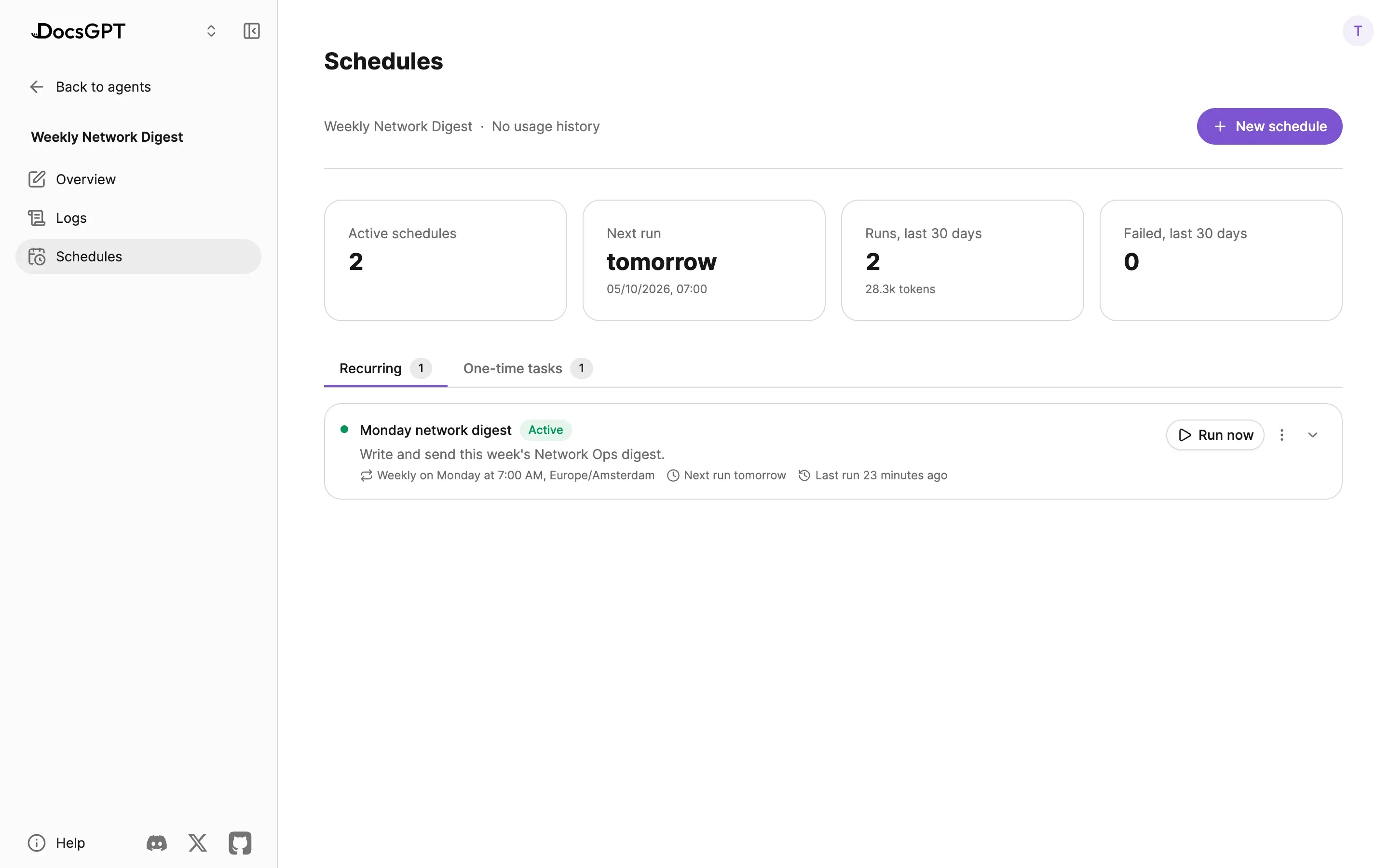
Schedules in Activity lists every schedule across your agents in one place, recurring and one-time. That includes the ones the assistant set up for you when you asked in a chat: "remind me on Friday at nine to send the carrier scorecard" becomes a one-time task, and it shows up here next to the schedules you built by hand.
Each agent also keeps its own Schedules tab, with the active schedules, the next run, runs and tokens over the last 30 days, failures, and Run now for when you don't want to wait until Monday.
Monitors: Ask to Be Told When Something Changes
A schedule runs at a time. A monitor waits for something to happen. Ask in a chat to be told when the Port of Rotterdam posts a strike or closure notice, or when a regulation page changes, and the assistant sets up a monitor and ends its turn. When the thing happens, the monitor picks the same conversation back up, with the context it had, and the agent carries on from there.
Monitors can watch a web page or any tool the chat can use, such as a search or an MCP action, and the assistant can hand you a webhook link or an approval link that wakes the conversation when someone uses it. A check where nothing changed costs no model call, and the same price drop or new item is never reported twice.
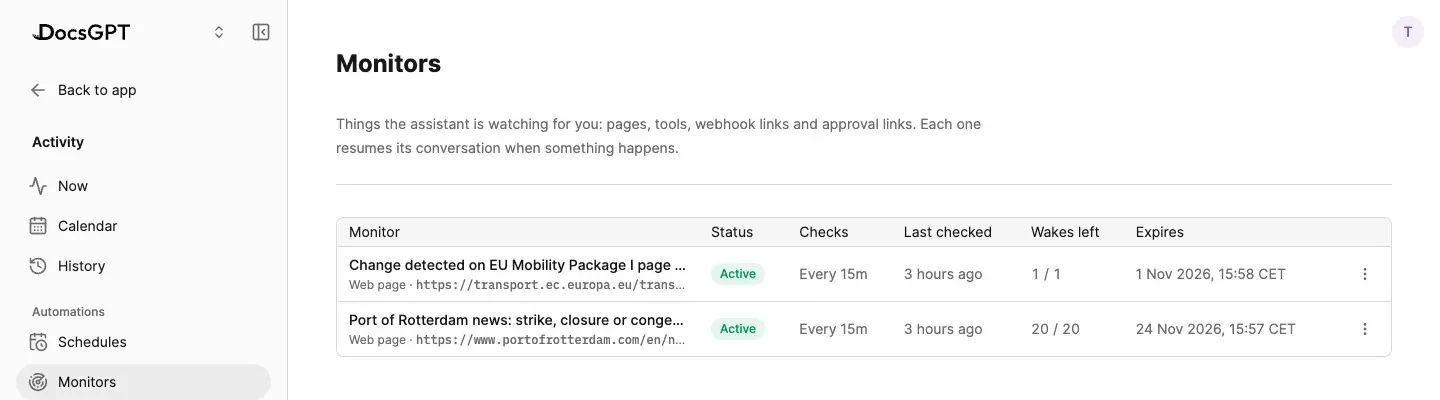
Monitors in Activity lists them all, with how often each checks, when it last checked, how many wakes it has left and when it expires. Pause, resume or cancel any of them there. In the sidebar, a chat with an active monitor carries a small ring, so you know which conversations are still listening.
Long jobs work the same way. A code run or a device command that takes a while continues in the background with a card in the chat and a Cancel button. You can close the tab, and the result is posted back into the conversation when it's done.
How You Hear About It Without Opening Anything
Background work is only useful if you find out when it finishes. DocsGPT works out where you are and tells you accordingly.
Text version
When a background job, a monitor, a schedule, an approval or a webhook finishes or needs you, DocsGPT checks where you are. If you're looking at the chat, the answer simply appears in it. If DocsGPT is open in another tab or window, a toast appears with an Open button and the chat is marked unread. If no DocsGPT tab is open, a Web Push notification goes to your browser when the operator has set it up, and the chat is marked unread. In every case but the first, the browser tab's title counts the chats that need you, such as (2) DocsGPT.
In the sidebar, each chat shows its most urgent state: a red dot when something failed while you were away, amber when a tool call waits for your approval, purple when something new arrived, a spinner while it's working. The browser tab's title counts the ones that need you, so a background tab reads (2) DocsGPT. Push notifications reach you with no DocsGPT tab open at all, once your operator has added the keys; on your own deployment that's three environment variables, and the docs have the steps.
Activity, Logs or the Audit Log?
DocsGPT now has three places that record what happened, and they answer different questions:
- Activity is yours. It shows what your agents and automations are doing and did, in plain words: runs, schedules, monitors and background jobs, and what needs you. Open it every morning.
- Logs is the full technical record, per agent or for your account. Every chat, search and API call with its execution trace, the passages retrieved, the tool calls and the tokens, plus the labels from Insights. Open it when a run did something you don't understand.
- Audit log is the admin's, under Admin › Audit log (it was called Activity in 1.0). Sign-ins, access changes, quota and connector changes across the whole instance, exportable for a security review. The governance post covers it, with the rest of what AI agent governance takes in DocsGPT: roles, quotas and traces.
Activity links into Logs wherever a run has a trace, so you rarely have to choose. Start in Activity and go one level down when you need to.
Make Monday Morning Shorter
Set up one thing this week and let Activity keep track of it. Put an agent you already use on a schedule, or ask the assistant in a chat to watch a page you check by hand. Next Monday, open Activity › Now before anything else.
The Activity docs go through each view, Agents covers schedules, monitors and the rest of what agents do, and Deploy compares Cloud, Managed, on-premises and air-gapped. If you want to see Activity on a workload like yours, talk to us. Next in this series: arc-decide, the small model behind Insights, and how we trained it.